
Why Your RAW Photos Look Wrong (And How to Fix It)
From Tony & Chelsea Northrup · · 20 min
The player loads from YouTube only when you click. It uses YouTube's privacy-enhanced mode.
If the video does not play, the owner may have turned off embedding. Watch it on YouTube instead.
Description
Try Evoto 8.1: http://SDP.io/evoto - use code TONYCOLOR for up to 20% off Free month of Evoto's color tools (no credits, no subscription): http://SDP.io/freecolor - until November 22.
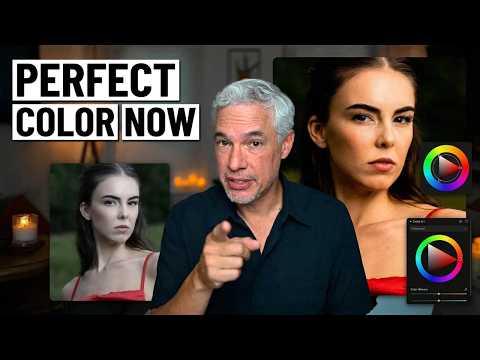
This is how I color grade every portrait I shoot, start to finish, in Evoto 8.1. I shoot RAW, so the colors my clients saw on the back of the camera are gone the moment I import. Evoto's new Authentic RAW profile brings them back in one click, and from there I show you the whole color workflow I use to get clients their pictures the same night.
What's in the video: the Authentic profile on Sony and Canon files, manual grading with the histogram (RGB readouts, clipping, split toning) and saving it as a preset, training your own AI Look, Multi-Image Color Consistency for Instagram carousels and corporate headshots, AI Color Match (copy the color of any inspiration photo and dial it back with the amount slider), AI Denoise on ISO 25,600 and ISO 8000 portraits, and 3 of the new AI Lab tools: Face Shadow Removal, Generative Expand and Clothing Recolor.
Chapters 0:00 Intro 1:39 Authentic RAW profile 3:23 Manual color grading and presets 5:50 Import your Lightroom presets 6:46 Train your AI Look 9:21 Multi-Image Color Consistency 11:54 AI Color Match 13:27 AI Denoise 16:09 New AI Lab tools 19:57 Wrap-up
Which tool will you try first? Let me know in the comments.
Disclosure: Evoto sponsored this video, but it's what I use for every portrait anyway, sponsored or not.
Shannon, the model in the carousel section, shot with me at my last NYC portrait workshop. Upcoming workshops: http://SDP.io/WS