

Part 2: Power Query Unpivot Cross Tab Table with 2 Column Variables. An Easier Way! EMT 1916 Part 02
From excelisfun · · 9 min
The player loads from YouTube only when you click. It uses YouTube's privacy-enhanced mode.
If the video does not play, the owner may have turned off embedding. Watch it on YouTube instead.
Description
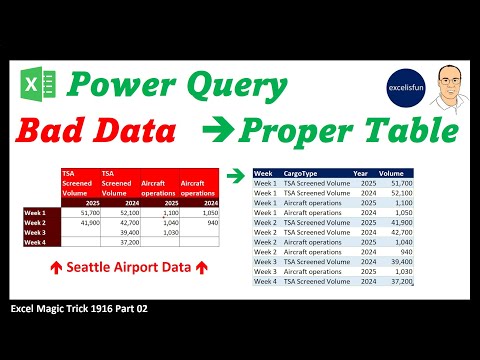
Download Excel File: https://excelisfun.net/files/EMT1916Part02.xlsx Buy excelisfun’s Power Query M Code book: https://www.mrexcel.com/products/the-transformative-magic-of-power-query-m-code-in-excel-and-power-bi/ Buy excelisfun’s other Excel Books: https://www.amazon.com/stores/Mike-excelisfun-Girvin/author/B009Q5T4P2?ref=ap_rdr&ccs_id=6f8ce877-462f-447e-b825-7ede1f72a9d3 Free Excel Class from excelisfun: https://www.youtube.com/playlist?list=PLrRPvpgDmw0k7ocn_EnBaSJ6RwLDOZdfo Learn how to convert bad data (cross tabulated table with two column variables and one row variable) into a proper data set for easier analysis using Power Query. This solution comes from our Online Excel Teammate at YouTube: Roger Stocker. Thanks : ) Go Team!!! Topics: 1. (00:00) Introduction. 2. (00:05) Fundamental problem of a Cross Tab Table. 3. (00:39) Amazing Online Excel Team!! Roger and Geert help our Team!!!! 4. (01:16) New Power Query book by Mike excelisfun Girvin 5. (01:37) Convert worksheet cross tabulated table into an Excel Table BEFORE bringing into the Power Query Editor. 6. (01:51) Use keyboard to convert data to an Excel Table. 7. (02:16) Use keyboard shortcut to bring Excel Table into the Power Query Editor. 8. (02:49) Name Query. 9. (03:14) Transpose table for first time. 10. (03:28) Rename Steps in Query to make M Code easier to read. 11. (04:21) Promote Headers 12. (04:47) Rename Columns 13. (05:07) Unpivot from Cargo Type and Year Columns, then rename two new columns: Year and Volume. 14. (05:45) Investigate Volume column to see that there are numbers that represent volumes and text entries to indicate a cyber attack in the same column. 15. (06:20) Reference base query and create new query named Cyber Attack Records. 16. (06:45) Filter to show Cyber Attack Records. 17. (07:08) Add Data Types 18. (07:18) Duplicate Cyber Attack Records query and create new query to get a table with the Cargo Records, including editing the existing filtering and changing the comparative operator “equals to” to “not equal to”. 19. (08:10) Change Data Type for Volume Column. 20. (08:33) Load base query as a connection only and the two proper table queries as new queries on new worksheets. 21. (09:18) Summary 22. (09:24) Closing
#excel #microsoft #excelisfun #excelcourse #mikegirvin #excel365 #powerquery #mcode #powerbi #datacleaning #dataanalysis #exceldataanalysis #powerbidataanalysis #unpivot #baddata #splitcolumns #mergecolumns #transposematrix
This video has subtitles or audio translations in these languages: Afrikaans, Amharic, Arabic (experimental), Bangla (experimental), Bosnian, Cantonese, Chinese, Croatian, Czech, Danish, Dutch, Dutch (Netherlands), Estonian, Fijian, Filipino, French (France), German, German (Germany), Hebrew (experimental), Hindi, Hungarian, Indonesian, Irish, Italian, Japanese, Khmer, Korean (experimental), Lao, Latvian, Lithuanian, Macedonian, Malagasy, Malay, Malayalam, Mongolian, Nepali, Norwegian, Pashto, Persian, Polish, Portuguese, Portuguese (Brazil), Punjabi (experimental), Romanian, Russian (experimental), Scottish Gaelic, Serbian, Sicilian, Slovak, Slovenian, Somali, Spanish, Spanish (United States), Swahili, Tajik, Tamil (experimental), Tatar, Telugu (experimental), Thai, Tibetan, Turkish, Turkmen, Ukrainian, Urdu, Vietnamese, Welsh, Western Frisian, Zulu. Click gear icon below video to set subtitles, audio and language.